Come now, seriously?
Let me tell you what exactly you are asking in a different way.
What happens when you move from your Maruti to Mercedes?
If your eyes popped up and you chuckled a smile. I think I have made my point.
From my personal experience, let me tell you, there are times when you have to take a leap of faith because you are just done staying at the same place for a long time. Webflow is that leap of faith for you when it comes to website development.
Most people do not quit WordPress loudly. They quietly tolerate it. Until one day, the plugins break, the site slows down, or a simple update turns into a technical nightmare.
Moving to Webflow feels like stepping into a cleaner, calmer room. Fewer moving parts. Less maintenance anxiety. More control over design and performance.
The reason people do not go back is simple: relief. No plugin overload. No security paranoia. No guessing which update will break the site next.
This blog walks through what actually changes when businesses migrate from WordPress to Webflow technically, emotionally, and operationally. Not the hype. The lived experience. And why once people feel that clarity and control, returning feels unnecessary, even painful.
Imagine this: You log into your WordPress dashboard to update a plugin and suddenly your site breaks. Your contact form stops working, your homepage layout is messed up, and you’re scrambling to figure out which plugin (out of the dozens installed) caused the issue. If this sounds familiar, you’re not alone. One frustrated WordPress user described “every time there’s an update to plugins, themes, or WordPress itself, something breaks on my site… It feels like I’m spending more time fixing problems than actually running my business.” WordPress may power over 40% of websites, but for many site owners, it’s held together by plugins, themes, and crossed fingers.
In recent years, a growing number of individuals and businesses have taken a leap to Webflow, a Modern Website Design platform, and discovered a smoother experience so much so that once they switch, they never want to go back. In this post, we’ll explore the real-world frustrations that drive people away from WordPress and how moving to Webflow addresses those headaches in a way that keeps ex-WordPress users happy (and wondering why they didn’t switch sooner).
We’ll share genuine experiences of what happens during and after the move, and why the transition to Webflow feels like a breath of fresh air for anyone tired of plugin problems and perpetual maintenance. Ready to find out why so many ex-WordPress folks say “never again”? Let’s dive in.
WordPress didn’t become the world’s most popular CMS by accident; it's powerful, flexible, and supported by a huge ecosystem of themes and plugins. However, those same strengths can turn into weaknesses over time. Here are the most common WordPress frustrations (you might recognize a few from personal experience):
If WordPress had a motto, it might be “there’s a plugin for that.” Need an image gallery? Install a plugin. Want SEO tools? Plugin. Contact forms, e-commerce, security, site backups you name it, there’s a plugin (often many) to add that functionality. While this plugin ecosystem makes WordPress incredibly flexible, it also introduces a web of dependency and risk. Each plugin is developed by a different author, updated on its own schedule, and may not play nicely with others.
The result? A delicate balance where one update can bring your site down. Users often report that an innocent update to one plugin or WordPress core can suddenly conflict with another plugin or theme leaving you with broken features or even the dreaded “white screen of death.” In fact, plugin conflicts and compatibility issues are one of the top complaints from WordPress site owners.
As a WordPress developer quipped, “You either get a beautiful custom site that breaks every time you update it, or a template-based site that works fine but kills creativity”. It can feel like you’re damned if you do, damned if you don’t update a plugin and risk breaking something, or don’t update and risk security holes.
Real example: An agency owner shared how they “used to fight WordPress plugins breaking, updates failing, responsiveness a nightmare” until they finally switched to Webflow. Another WordPress user vented on a forum that every update caused their email form to stop working and page design to go haywire, eating up hours of troubleshooting. These aren’t rare horror stories, they're everyday experiences for many WordPress admins.
WordPress themes promise a quick way to make your site look great. But unless you custom-code your site from scratch, you’re likely theme-dependent, which brings its own baggage. Many off-the-shelf themes (or page builders like Elementor and Divi) have tons of pre-built code and may not be optimized for your specific needs. Customizing them often means injecting custom CSS or PHP, creating a child theme, or using another plugin all of which can unravel when the theme updates.
WordPress’s theme-based structure can thus become a trap. As Webflow developer Crystal Scott put it, once you apply custom fixes or accessibility improvements to a WordPress theme, they become “tightly coupled to the theme’s codebase. Update the theme, and those carefully applied fixes can break”. She’s seen theme updates change HTML IDs and structure, causing whole components to disappear. In other words, an update meant to improve your site can end up breaking your design or functionality simply because the underlying theme changed. It’s no wonder many WordPress users live in fear of hitting the “Update theme” button.
Even without updates, themes impose design limits. You might want a totally unique layout, but you’re confined to what the theme (or page builder) allows unless you’re comfortable diving into code. It can feel like trading one frustration for another: stick to the theme’s structure (and sacrifice originality), or customize heavily and risk stability. As one designer noted, using WordPress often feels like “locked door after locked door. If you’re not a PHP developer, the system works against you”, turning even simple layout tweaks into a “frustrating tangle of theme limitations and clunky plugin dependencies”.
Keeping a WordPress site running smoothly is like caring for a high-maintenance car, skipping a tune-up and you could be in trouble. The platform releases regular core updates, and each of your plugins and themes has its own update schedule. Outdated software is the number one cause of WordPress security breaches. In one analysis, a whopping 95% of infected CMS sites were running WordPress largely due to outdated core or plugins. So you dutifully update and then spend time checking that nothing broke each time.
This never-ending cycle is exhausting and expensive. WordPress themselves recommend steps to keep your site secure and performant, including updating PHP on your server, updating WordPress core, updating all plugins/themes, and then “check that no update breaks your site.”
That last part says it all every update is a bit of a roulette. It’s common (though not “normal”) for WordPress sites to have issues after updates, especially if you have many plugins or a complex theme. Site owners share strategies like maintaining a staging site to test updates, or carefully vetting each plugin’s reputation and update history. These are smart practices, but let’s be honest: not everyone has the time or know-how to run a mini IT department for their website.
For small businesses or solo entrepreneurs, maintaining a WordPress site can feel overwhelming. You might not have a “website team” on hand, so those tasks fall to you eating into time you’d rather spend on content, marketing, or your actual business. Many companies without a dedicated developer find managing WordPress “overwhelming and time-consuming”.
Regular backups, security scans, performance optimization, database cleanups the checklist goes on. And if you neglect these chores? You risk security vulnerabilities, broken features, and a sluggish site.
WordPress’s popularity is a double-edged sword: it’s popular because it’s powerful, but that popularity makes it a prime target for hackers. With tens of thousands of plugins floating around (not all of them following best security practices), plus countless users who may skip updates, the platform presents a huge attack surface. One report showed that 90% of all hacked CMS websites in 2023 were running WordPress largely due to outdated plugins or themes that attackers exploited. That statistic is eye-opening, but perhaps not shocking when you recall how many WordPress sites have a weak link somewhere (an old plugin, a forgotten admin account, etc.).
Even diligent site owners can get caught out. As Crystal Scott recounted, one of her clients’ WordPress sites got hacked despite their best efforts and it was a nightmare to fix. The backups they assumed were running hadn’t been, so recovery meant piecing the site back together page by page (even resorting to the Internet Archive’s Wayback Machine to copy old content).
The hosting company charged hundreds of dollars for emergency cleanup and “ongoing protection” services. In short, a single security lapse turned into a very costly, stressful incident.
The core of WordPress is reasonably secure, but it’s the ecosystem (plugins/themes) and self-hosted nature that introduce risk. Unless you opt for pricey managed WordPress hosting, security is on your shoulders. You likely need security plugins, manual tweaks, and constant vigilance to keep the bad actors out. It’s not fun getting alerts that your site has malware or has been blacklisted by Google because of a hack and then scrambling to figure out what went wrong.
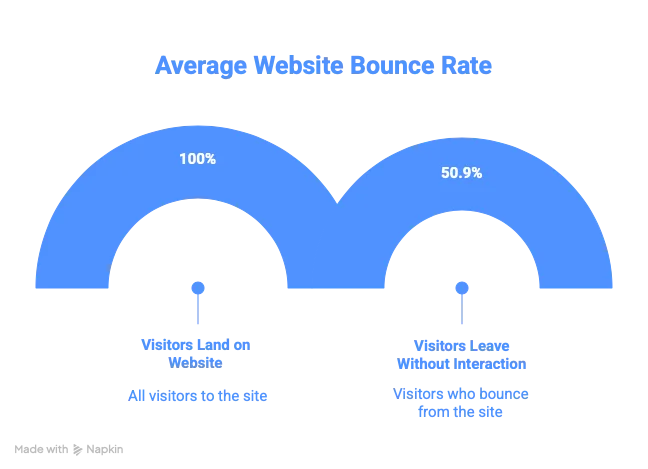
In today’s web, speed matters, users have little patience for slow sites, and search engines use speed as a ranking factor. WordPress sites can be made very fast, but out-of-the-box a typical WordPress setup can be sluggish, especially if you’ve added lots of plugins or a bloated theme.
Each plugin might load its own scripts and CSS, make database queries, etc. Without careful optimization, you end up with a page that makes dozens of requests and takes 3, 5, or even more seconds to fully load for a visitor.
Studies have shown that even a 1-second delay in load time can reduce conversions significantly by about 7% according to Akamai research. Many WordPress sites, unfortunately, fall into that slow lane. In fact, one agency measured that the average WordPress page they encountered took around 3.26.1 seconds to load, whereas the same page built in Webflow could load in roughly 1.52.9 seconds.
That’s a dramatic difference. WordPress often requires a stack of performance plugins and add ons (caching plugins, image optimizers, CDN integrations) to achieve speed parity with what Webflow delivers natively. And again more plugins means more maintenance and more potential conflicts.
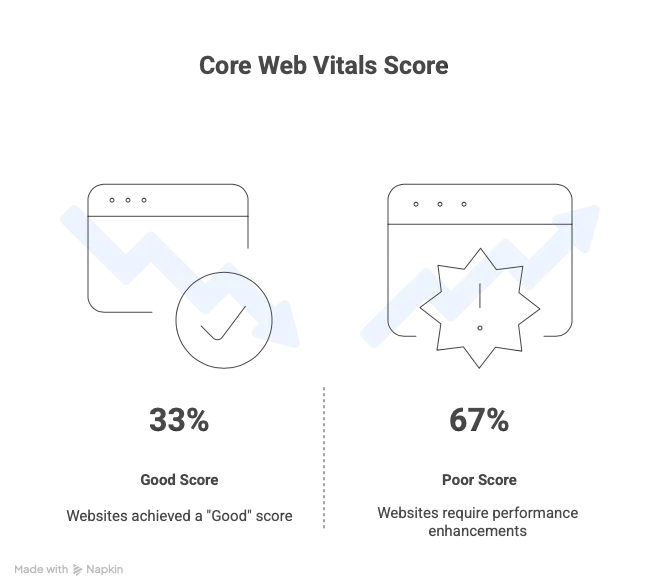
So if you’ve struggled with sluggish page speeds on WordPress, maybe seeing poor Core Web Vitals or hearing complaints from users you’re encountering an intrinsic issue: a generalist platform loading lots of extras versus a streamlined platform optimized for modern performance. Yes, you can get WordPress sites to be fast, but it takes effort and expertise, and it’s easy to knock things out of tune (for example, adding one heavy plugin can negate other optimizations).
Combine all these frustrations with plugin chaos, theme quirks, constant updates, security fears, performance tuning and you might reach a breaking point. The tipping point often comes when you realize you’re spending more time managing your website than using it as a tool to grow your business or content.
It’s supposed to be the other way around! As one WordPress escapee put it, “I thought I needed more code, more hours, more headaches… Then I found Webflow”. If you’ve felt that your WordPress site is a fragile house of cards, or you hesitate to add new features because it might break something, those are signs that the platform is holding you back.
Many companies start on WordPress (it’s familiar and there’s that promise of “free” and “infinite plugins”), but as they grow, the cracks start to show. Perhaps the site slows down under traffic, or marketing wants a new landing page fast but development is bogged down, or an update takes the site offline at the worst time. Eventually, what was once a solution becomes a bottleneck.
Enter Webflow. In the next sections, we’ll look at what changes when you move to Webflow and how it directly tackles these pain points with a modern, smoother approach. You’ll see why people who switch to Webflow often describe it as liberating and say they “never looked back.”
So, what actually happens when you migrate from WordPress to Webflow? In short: all those headaches start to disappear. Webflow development is a visual web development platform and hosted branding service all in one. It was built in the 2010s with modern web needs in mind, which means a lot of the clunky holdovers from WordPress’s early 2000s origins simply don’t exist. Here’s a breakdown of how life on Webflow contrasts with the WordPress struggles we outlined:
One of the first things ex-WordPress users notice is that Webflow doesn’t require a menagerie of plugins to achieve common tasks. The platform includes many features natively: robust CMS collections for dynamic content, a built-in form builder and submission handling, SEO settings for every page and
CMS item, automatic sitemaps, responsive image optimizations, and more all out of the box. Need a gallery or slider? It’s built into the designer. Need to add custom code for a fancy feature? You can, but you often won’t have to, because Webflow’s interactions and animations are powerful (and don’t require an extra JavaScript plugin).
This integrated approach means far fewer moving parts that can conflict or break. In WordPress, you might rely on 1030 plugins for a typical marketing site (from SEO performance optimization to forms to page builders). In Webflow, you might have zero plugins for those needs because the platform already supports them. Even when you do extend Webflow, it’s often via embedding a snippet or using an official integration (for example, adding a Shopify buy button, or integrating a third-party chat widget), which doesn’t carry the same risk as installing unknown PHP plugins on your server.
Moreover, Webflow has a curated App Marketplace for extensions and integrations when you need to go beyond native features and these are vetted for quality and security. You won’t find 50 half broken form plugins to wade through; you’ll find a smaller set of well-supported solutions.
Webflow essentially eliminates the plugin circus that WordPress users juggle. As Finsweet (a leading Webflow agency) notes, Webflow’s native capabilities and managed integrations “minimize the risk of conflicts, compatibility issues, and security concerns that can arise from WordPress plugins”. In practical terms, that means when you hit “publish” on a Webflow site, you can be confident it’ll just work with no surprise errors from a random plugin update.
Remember those rigid WordPress themes and the constant worry that an update might alter your layout? Webflow does away with the concept of themes entirely. Every design in Webflow starts from a blank canvas (or a template if you choose one), and you have full control over the HTML/CSS structure via the visual designer. Essentially, Webflow gives you the power of coding a custom site, but in a drag-and-drop visual interface that writes clean code for you. This means what you build is truly yours and stays the way you built it. There are no outside theme developers pushing updates that alter your design.
Once you build it, it’s yours and it stays yours. No unexpected updates to structure, no broken class names or altered IDs, no update-induced regressions”. The stability this provides is huge for anyone who has been burned by a WordPress theme update before. Your design and content structure in Webflow remain intact release after release.
Just as important is the creative freedom this offers. You’re not limited by a pre-made theme’s layout or having to hack around it. In Webflow, you can implement any design you can dream up (or that your designer creates) with pixel-perfect accuracy. There’s a reason many designers love Webflow: it “gives control over every element of the site” and lets you visually style layouts without battling hidden theme settings. You don’t have to be a developer to create a bespoke design, and you don’t have to convince a plugin to behave a certain way; you design it directly.
For content-heavy sites or unique designs, this is a game-changer. Instead of either accepting a cookie cutter theme or paying a developer to custom-code a WordPress theme (which then might still have to bolt onto WP’s structure), Webflow lets you have custom design and functional stability at the same time. Or as one former skeptic said after trying Webflow, “I built a site with no code, exactly how I imagined it… Webflow is freedom for creators.” Maintenance? What Maintenance?
Perhaps the biggest relief for anyone migrating from WordPress is the near-elimination of manual maintenance. With Webflow, you don’t need to worry about software updates not for the core platform, and not for plugins (since, as discussed, you mostly won’t have them). Webflow is a cloud based SaaS: the Webflow team continuously updates the platform with new features, fixes, and security improvements, and those updates apply to everyone automatically.
There’s no concept of “your version” of Webflow getting out of date; you’re always on the latest version by default. What does this mean in day-to-day terms? No more update notifications. No more fear that clicking “update now” will break your site. No need to schedule maintenance windows or backup before updates.
In fact, you can banish the entire concept of “patch Tuesday” or whatever from your mind. As one source summarizes: “Webflow doesn’t rely on plugins or PHP updates. You’ll never need to worry about updating software or managing outdated extensions. You’re always on the latest version, updated automatically in a secure sandbox with zero downtime.”
That’s a stark contrast to the WordPress routine of constant vigilance. Instead of spending time every week on maintenance tasks, Webflow users typically just… don’t. You might occasionally download a backup (Webflow allows you to export your site’s code if needed, or you can backup within Webflow too), but you generally focus on content and design, not the under-the-hood mechanics. As the Postdigitalist blog quipped, “Webflow site maintenance is far simpler.
You just pay for your Webflow plan every month or year and these affairs are taken care of.” No manually updating a CMS management service, no surprise breakages from an incompatible plugin update. This doesn’t just save time, it brings peace of mind. Companies find they no longer need to allocate hours of IT time to patching and monitoring for vulnerabilities each month.
If you’ve ever stayed up late to recover a broken site after an update or rushed to patch a critical security flaw, you know how valuable this peace of mind is. Webflow’s fully managed infrastructure means the platform handles the boring (but critical) upkeep, and you get to focus on using your website, not fixing it.
Given WordPress’s security pitfalls, it’s natural to ask: is Webflow more secure? Generally, yes Webflow’s closed, managed environment is far less susceptible to hacks. With Webflow, your site is hosted on their servers (Amazon Web Services, with Fastly CDN), and they handle security at the infrastructure level.
You’re not installing random code from thousands of third-party developers; the surface area for attacks is massively reduced compared to WordPress. There’s no PHP codebase on your server that you or a plugin could inadvertently expose. Webflow's code is compiled and managed in the cloud. Reports of Webflow sites getting hacked are exceedingly rare.
There’s no /wp-admin to brute force, no database credentials to steal (Webflow CMS is not a traditional MySQL database on your server), no out-of-date plugins with SQL injection flaws, etc. Webflow includes free SSL on all sites automatically, enforces secure publishing, and sandboxes the design environment.
As a result, security plugins, manual scans, and emergency clean-ups are a thing of the past for Webflow users. One agency noted that Webflow’s managed approach “alleviates the need for users to worry about security patches and updates” the platform itself reduces the risk of security breaches by always staying up to date and secure by design For businesses, this translates to lower risk and cost.
If your IT team has been spending hours each month on WordPress security chores (or you’ve been paying for security services), switching to Webflow can drastically cut those tasks. You won’t need a plugin to add SSL or to firewall your site; it's done for you. Webflow also provides automatic backups and versioning, so in the unlikely event something did go wrong, you could restore content easily.
In short, moving to Webflow is like moving into a secure high-rise with 24/7 security and maintenance staff, after years of living in a house where you had to install your own alarm system and fix the leaky roof yourself. The burden is lifted. As one Webflow pro described, Webflow is secure by design, and “far less stressful to maintain” than WordPress. That reduced stress alone is a big reason people don’t miss WordPress once they leave it.
We touched on performance earlier how WordPress often needs help to achieve fast load times. Webflow flips this experience on its head: sites on Webflow tend to be fast by default, without the owner needing to be a performance expert. Webflow’s hosting stack is built for speed: it uses AWS cloud servers and a global Fastly CDN network to deliver your content quickly worldwide.
The code generated by Webflow is clean and minimal (since you’re not dragging in lots of extraneous scripts), and features like image optimization are automatic (Webflow will generate responsive image variants and lazy-load them as needed, for example).
The difference is often immediately noticeable after a migration. Many teams find their page load times drop significantly once on Webflow. For instance, if your WordPress pages were taking ~5 seconds before, you might see them load in ~2 seconds on Webflow, a huge improvement that users and Google’s algorithms will appreciate.
In the earlier comparison, Webflow builds had a Core Web Vitals pass rate of approximately 90 to 95% versus around 55 to 65% on equivalent WordPress sites. That speaks to better performance and user experience (Core Web Vitals are Google’s way of measuring real-world page speed and stability).
Crucially, you achieve this without needing to configure caching plugins, connect CDNs yourself, or minify files manually Webflow handles these optimizations in the background. It automatically scales to handle traffic spikes, so your site remains fast even when you suddenly get a rush of visitors.
For business owners, this means one less worry: your site is unlikely to slow down just because it grew more popular. And if you’re an agency or designer, you know that delivering a fast site without needing a laundry list of performance tweaks means happier clients and less troubleshooting.
Bottom line: faster load times, better scores, no plugin juggling required. Speed is now Webflow’s problem (and they solve it well), not yours. You and your audience simply enjoy a snappier site.
Beyond the technical improvements, moving to Webflow often changes the workflow of how you manage content and updates on your site in a very positive way. WordPress’s admin interface, while familiar to many, can be confusing for non-technical editors, especially if the site uses a lot of custom fields or page builder elements. Webflow approaches content editing with a focus on simplicity and visual context.
There’s a Webflow Editor mode which lets content editors log in, click on the live site elements (text, images, blog posts, etc.), and edit right on the page, seeing their changes in context. It’s intuitive and avoids the “edit in one screen, preview in another” shuffle that WordPress often requires. Clients and teams often find this refreshing.
A marketing team member can easily add a new blog post in Webflow, update some landing page copy, or swap an image all without accidentally breaking the layout or needing a developer’s help. Webflow’s designer interface is more complex (that’s what a developer or designer uses to build the site), but the Editor is designed for simplicity.
And because Webflow is inherently visual, even building a new page from existing components can be much quicker than in WordPress where you might have to wire together a template, menu, and plugin settings.
One Webflow agency founder noted that in Webflow, “clients actually understand how to use their Luxury Personal Websites… they can add blog posts, publish case studies, swap out an image all without breaking the layout
or calling me in a panic.” This empowerment is a stark change from the typical WordPress scenario where clients are often afraid to touch certain things or feel lost in the WP dashboard labyrinth. By removing the need to fight with the system, Webflow frees up non-technical users to contribute directly. And if you are a developer or designer managing the site, you’ll get far fewer panicked calls about “the page looks wrong after I edited something”, a common occurrence with inexperienced WordPress users.
Moreover, creating new content types or features is easier. On WordPress, if you suddenly want to add, say, a “Testimonials” section with its own custom layout and fields, you’d likely need a plugin like Advanced Custom Fields and some PHP theming to make a custom post type. On Webflow, you can create a new CMS Collection (e.g., Testimonials), define the fields, and design a new page or section for
it visually all without writing a line of code. There’s no need to spin up a dev environment or worry about database schema; it’s integrated into the Webflow Designer UI. This means you can extend your site’s functionality on the fly, and quickly.
One marketing director described it like this: with WordPress “design changes often require developer intervention or risky theme edits,” whereas “Webflow empowers teams” to make those changes themselves with no-code tools. The result is faster iteration than what used to take weeks of back-and-forth with developers on WordPress might take days or hours in Webflow.
Add up all these differences: no plugin drama, no theme constraints, no updates to worry about, better security, faster performance, and easier editing and you get a platform that people genuinely love after they’ve experienced it. It’s not just about being free of pain; it’s about enabling new possibilities.
Folks who migrate to Webflow often find they can do things they hesitated to do before. Need a new campaign microsite? Webflow can spin one up quickly. Want to refresh the design? Tweak away freely without fear of crashing the site. Tired of telling your colleague “I’ll have to ask the developer to add that” now you can often do it yourself.
Perhaps that’s why you hear comments in the Webflow community like: “The moment I built my first Webflow project, I knew I wasn’t going back [to WordPress] either.” and “I don’t just use Webflow anymore I believe in it. It’s the only platform that respects both design and function without forcing you to choose one.”
These are real reactions from former WordPress users who have seen the difference. Once you’re no longer spending late nights fixing hacked sites or wrestling with conflicting plugins, you gain back time and sanity to focus on what really matters: your content, your design, your users, your business.
To be fair, Webflow does have some trade-offs (for instance, Webflow is a closed platform, so you’re hosting with them you can export code for a static site, but you can’t export the CMS functionality, which is a form of vendor lock-in. And very large or complex e-commerce sites might still lean toward specialized platforms in some cases).
But for the vast majority of marketing sites, portfolios, blogs, and even moderately complex web apps, Webflow covers the bases extremely well without the bloat. As an agency leader put it: Webflow offers “enterprise-grade performance, security, and visual flexibility without relying on plugins,” enabling faster iteration and growth.
That’s why the migration trend is growing: in 2025 Webflow reached over 3.5 million users and is especially popular among scaling companies and agencies who outgrew WordPress. They’ve seen that a website should be an asset, not a constant source of friction.
By now, you might be thinking, “Okay, Webflow sounds great but how painful is it to switch over from WordPress?” It’s a smart question. Any website migration needs to be planned carefully to avoid losing data or SEO rankings. The good news is that moving from WordPress to Webflow can be a smooth, modern transition with the right approach, and there are even Top Agencies for Personal Branding and Marketing that specialize in making it painless.
First, let’s demystify the process a bit. Migrating from WordPress to Webflow typically involves rebuilding your site’s design in Webflow and importing your content. There isn’t an automated one click import that brings everything over (because the platforms are fundamentally different), but that’s not a bad thing it means you can cleanse and improve as you migrate. Think of it as moving to a new house: you wouldn’t just dump everything in randomly; you’d take the opportunity to get organized and maybe buy some new furniture that fits the space.
Key steps in a WordPress to Webflow migration:
• Content Export/Import: You can export your WordPress posts and pages (usually via the WordPress export XML or using a plugin to get a CSV of posts). Webflow’s CMS allows you to import content in CSV format. Many people export their blog posts (including fields like title, body, author, date, etc.), then import into Webflow CMS Collections.
For static pages, it’s often just copy-paste of text, since those will be manually created in Webflow. It’s also a chance to prune old content or reorganize content structure if needed (e.g., maybe combine some pages, or update old blog posts during the move).
• Design Rebuild or Refresh: You will recreate your layout in Webflow’s designer. This can be done to match your existing site’s look fairly closely, or you might take the opportunity to do a redesign or cleanup of the UI.
Many times, migrating to Webflow is motivated by a desire for a fresher design and not just the backend improvements, so redesigning is common. If you love your current design, a Webflow expert can replicate it almost pixel-perfectly on Webflow but you might find ways to modernize it given Webflow’s flexibility.
• Functionality Remapping: Identify any special features on your WordPress site and find the Webflow solution for them. Do you have a contact form (very likely) Webflow will handle that natively (with the form submissions accessible in Webflow or via email/Zapier). Using a third party booking plugin?
In Webflow, you might embed an external widget or find a workaround. E-commerce store? Webflow has e-commerce capabilities, though if it’s a large store, one might consider a dedicated platform or using Webflow for front-end and Shopify Buy buttons, etc. The vast majority of marketing/content site features (galleries, sliders, lightboxes, etc.) have straightforward implementations in Webflow.
• SEO & URL Redirects: This is crucial because you don’t want to lose your Google rankings when you migrate. Webflow makes it easy to set up 301 redirects from old URLs to new ones (if the URL structure changes) with a simple interface. Before launch, you’d map all your old WordPress URLs to the new Webflow URLs. Also, carry over your SEO metadata (titles, meta descriptions, alt text on images, etc.).
Webflow’s SEO settings let you input all the same info. In fact, Webflow automatically generates a sitemap and has fields for SEO titles and meta descriptions for each page/CMS item. If done right, a migration should retain your rankings; some have even noted organic traffic improvements of 50% to 120% in the year after moving to Webflow (likely due to improved speed and cleanliness).
• Testing & Launch: You’d publish the Webflow site to a staging domain (Webflow lets you use a webflow.io subdomain for testing). Click around, make sure everything looks and works as expected, forms send email, etc.
If you have a team, let them review it too. Once ready, you point your custom domain to Webflow hosting. Webflow handles provisioning SSL and all that automatically. And voila your site is live on Webflow. From that point on, you can shut down your old WordPress hosting.
Now, if that sounds like a lot of steps, you don’t have to do it alone. There’s a whole ecosystem of agencies who excel at WordPress-to-Webflow migrations. In fact, some top Webflow agencies have made a name for themselves by specializing in exactly this service.
Agencies like Finsweet, Flow Ninja, Refokus, Veza Digital, BRIX Agency, Creative Corner, Edgar Allan, and 8020 regularly help companies “break free” from WordPress and rebuild in Webflow, bringing deep expertise to ensure nothing is lost in translation. These agencies know all the pitfalls and best practices from preserving SEO juice to recreating complex functionality so that the migration is seamless and stress-free for you.
(Many of these teams are recognized Webflow Expert agencies for example, 8020 is known for migrating large, complex sites into Webflow while preserving every detail, and Finsweet even provides community tools to extend Webflow’s capabilities, showing their depth in the platform.)
Even newer boutique agencies are riding this migration wave. For instance, Blushush, a team founded by Sahil Gandhi and Bhavik Sarkhedi has emerged as a specialist in guiding clients through stress free migrations from WordPress to Webflow. Teams like theirs handle the heavy lifting, from planning the migration strategy to executing it without downtime, so that moving your site feels far less daunting than you might expect.
In choosing a partner for migration, you’d look for folks with real experience doing it. As 8020 (a leading Webflow Enterprise agency) advises, a good and top Webflow agency will have a clear process, technical expertise in Webflow’s CMS and interactions, and a track record of successful migrations to show you.
The right partner will ensure that your new Webflow site retains or improves upon the functionality and user experience of your WordPress site. They’ll also be mindful of the change management, perhaps training your team on using Webflow Editor, and being on standby post-launch in case any tweaks are needed.
That said, if you’re a DIY type, plenty of resources exist to help you as well. Webflow University (Webflow’s free training hub) has guides on CMS imports and using the Designer.
The community forums have many threads from people who have done the switch, sharing tips. Some have even automated parts of content migration via APIs or tools. But whether you go it alone or hire an agency, the consensus is that with proper planning, migrating to Webflow is absolutely doable and often much smoother than people anticipate.
As one guide put it, it’s an opportunity to not only move your site but to “elevate your digital presence” in the process you get to fix old issues, refresh the Figma UI/UX design, and come out the other side with a site that’s better than before in every way.
Contact Blushush today. Migrating from WordPress to Webflow can feel like trading in a clunky old car for a modern electric vehicle suddenly everything is quieter, smoother, and just works without the constant tune-ups. The frustrations that were part of your regular routine fade away: no more patching plugins at 2 AM, no more crossing your fingers on updates, no more saying “sorry, our site is down again.” Instead, you get to experience what a modern web platform offers stability, security, speed, and the freedom to create without constraints.
It’s no wonder that people who make the switch are almost universally positive about the outcome. We’ve highlighted quotes from real users and developers who have done it, and the sentiment is clear.
Curious how this applies to your own project? See our Webflow Development services or explore everything we do.